How to Convert Several Videos at Once and Download Them as a ZIP
If you have a folder of clips to convert, doing them one at a time is tedious. Free Video Converter lets you add as many files as you like, convert them in a single run and download them together. This guide explains how that works and where it can run into trouble.
Adding several files
- Open the converter.
- Click "Choose videos" and select several files at once (hold Ctrl or Cmd, or use Shift to select a range), or drag them all onto the drop area. You can also add more files later.
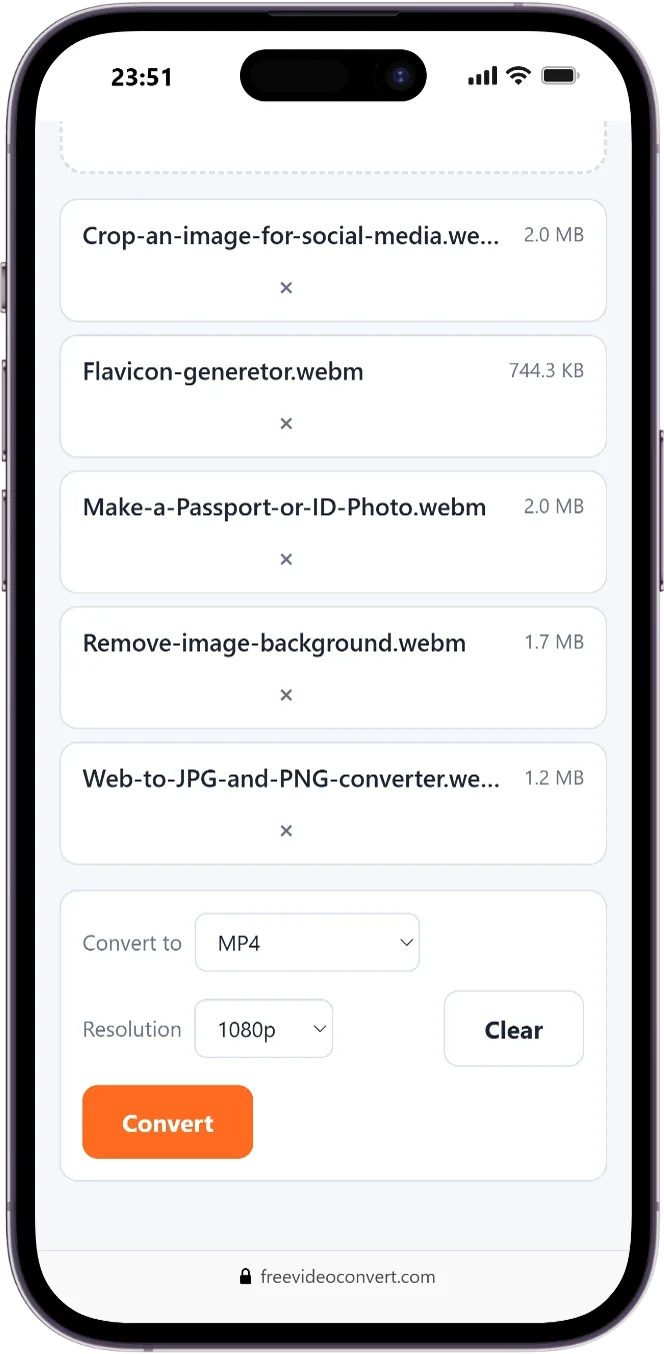
- Each file appears in a list with its name and size. Remove any you do not want with the × button.
Settings apply to the whole list
The "Convert to" format and the resolution menu apply to every file in the list. If you need different formats for different files, convert them in separate rounds: pick one format, convert, then change the format and convert the files again. Changing the format after a conversion resets the finished files to "waiting", so download what you need before switching.
How the queue runs
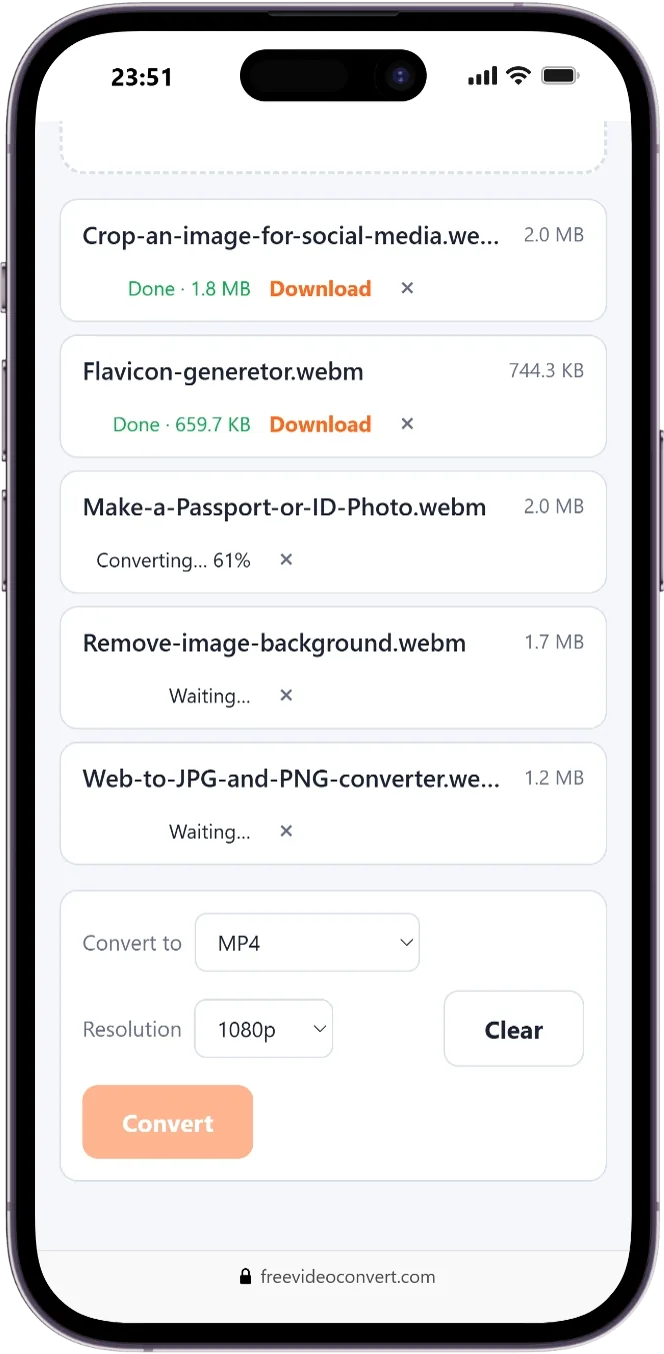
- When you click Convert, files are processed one after another in the order shown, not in parallel. Each shows a percentage while active and "Waiting..." until its turn.
- If one file fails, it is marked with an error and the rest continue.
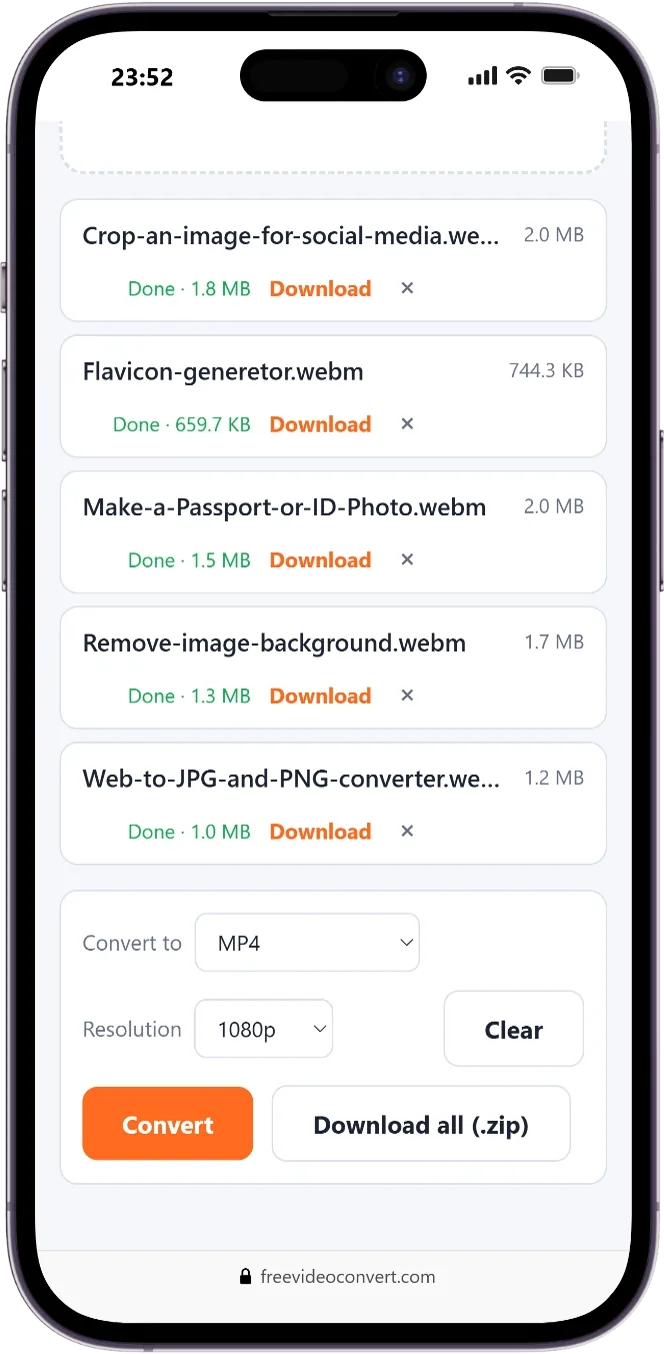
- Files that finished successfully show "Done" with the new size and a Download link. You can start downloading finished files while later ones are still converting.
Downloading everything as a ZIP
When two or more files have finished (and the queue is idle), a Download all (.zip) button appears. It builds a single ZIP file named converted-videos.zip in your browser and downloads it. If two outputs would have the same name, a number is added so nothing is overwritten.
The ZIP stores the files without further compression, because video is already compressed and recompressing it would only waste time. That also means the ZIP is about as large as the files together.
Limits to be aware of
- Memory. Each file is read into your browser's memory during conversion, and the ZIP is also assembled in memory. For large batches, convert a handful at a time, download the ZIP, then continue.
- 4 GB ZIP limit. The ZIP format used here cannot exceed 4 GB in total. If your batch is bigger, you will see a message. Download the files individually or in smaller groups instead.
- Time. Converting inside a browser is slower than a native program, and a batch takes as long as all its files added together. Leave the tab open and do not let your computer go to sleep while it runs.
- Leaving the page. Results are kept only in the open page. If you close or reload the tab, finished files are gone, so download them first.
Tips for big jobs
- Test with a single short file first to confirm the format and resolution are what you want.
- Use a desktop or laptop. Phones and tablets have much less memory for this.
- If a batch fails partway, see our troubleshooting guide.
Ready to try it? Convert your video in the browser, no upload and no sign-up.
Open the converter