How to Convert a Video to MP4 for Free (Step by Step)
MP4 is the format most devices, apps and websites accept without complaint, which is why "convert to MP4" is the most common video task there is. This guide walks through doing it with Free Video Converter, explains what each setting does, and is honest about where the tool is slow or limited.
Before you start
The converter runs inside your web browser. Your video is not uploaded to a server; it is read from your disk, converted on your own computer with FFmpeg (a widely used open-source video tool) compiled to WebAssembly, and handed back to you as a download. Two practical consequences follow:
- The first conversion needs a one-time download of about 32 MB. That is the conversion engine itself. Your browser keeps it afterwards, so later visits start faster.
- Speed depends on your computer. The conversion engine runs on a single thread inside the browser, so it is slower than a desktop program such as HandBrake or FFmpeg installed natively. A short clip takes moments; a long, high-resolution video can take a long time.
Step by step
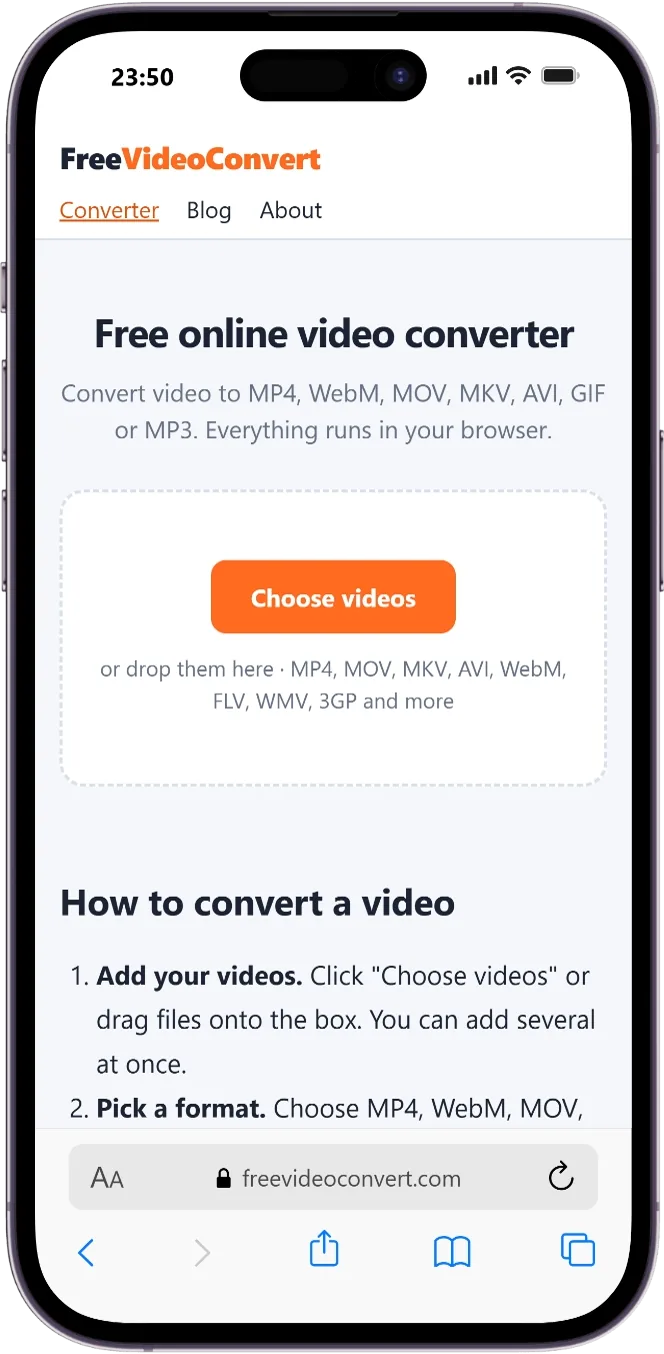
- Open the converter. Click "Choose videos", or drag one or more files onto the box. Common formats such as MOV, MKV, AVI, WebM, FLV, WMV, 3GP and MPEG are accepted.
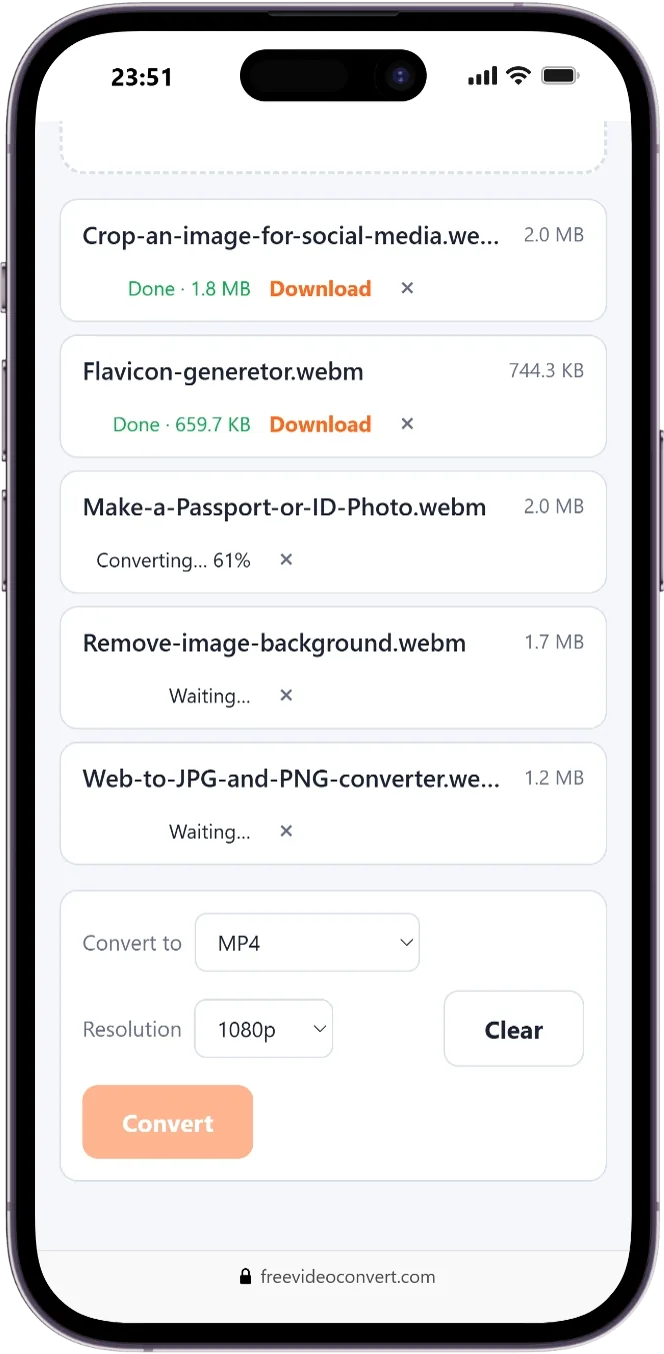
- Check the list. Each file appears with its name and size. Use the × button to remove a file you added by mistake.
- Choose "MP4" in the "Convert to" menu. MP4 is the first option and the default.
- Optionally choose a resolution. "Original" keeps the size of your source. The other choices (1080p, 720p, 480p, 360p) shrink the video; they never enlarge it, and the shape of the picture is preserved.
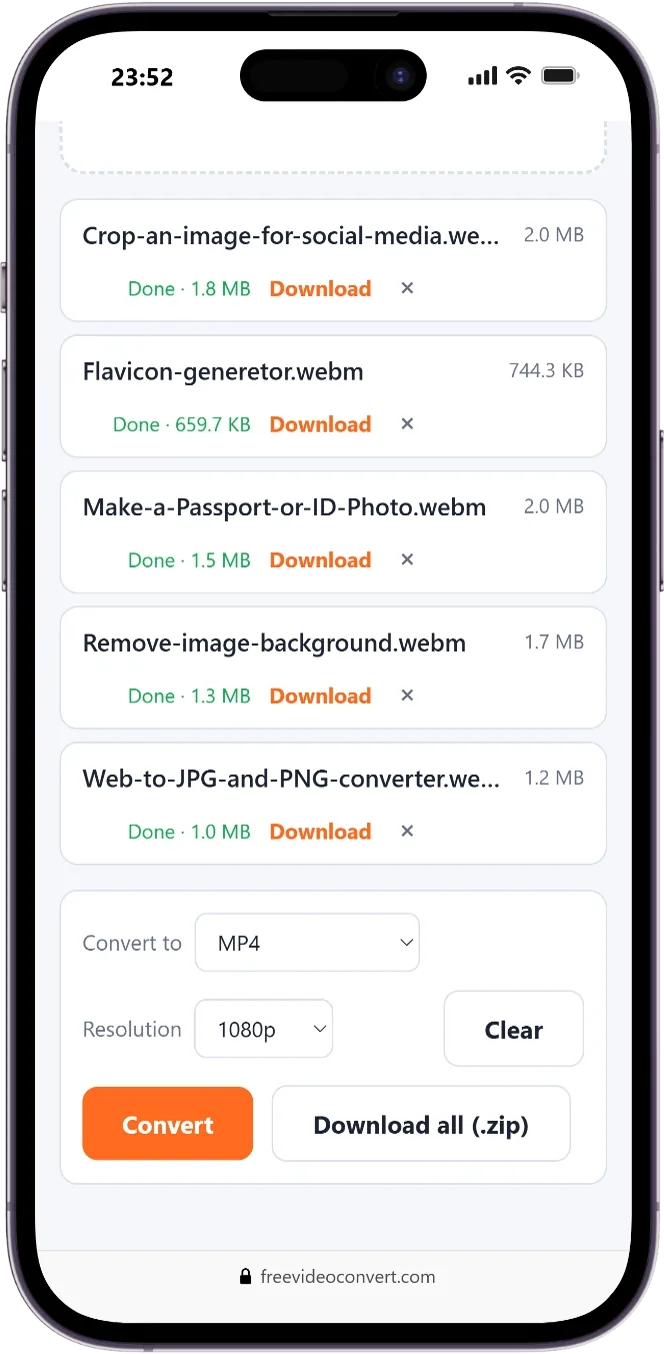
- Click Convert. Each file shows a percentage while it is processed. Files are converted one after another, not all at once.
- Download. When a file shows "Done", click Download. If you converted two or more files, a "Download all (.zip)" button appears.
What the MP4 setting actually produces
So you know exactly what you are getting: the MP4 output uses H.264 video and AAC audio (128 kbps). The video is encoded with a quality-based setting (CRF 26) and x264's fastest preset (called "ultrafast"), and the file is arranged so playback can start before the whole file has loaded, which helps if you later put it on a web page. You cannot change these values on the site; they are fixed presets chosen to be fast and widely compatible.
The ultrafast preset means the encoder works quickly rather than squeezing every possible byte out of the file. Expect a result that looks good for everyday use but is larger than what a slower, more thorough encode would produce.
Things worth knowing
- Conversion always re-encodes. Even if your source is already an MP4, the video is processed again, which can cause a small loss of quality. Converting to MP4 does not improve a low-quality source.
- One video track and one audio track. By default the converter keeps a single video stream and a single audio stream. Do not rely on subtitles or alternate audio tracks being kept.
- Large files need memory. The file is held in your browser's memory while it converts. If a very large file fails, try a lower resolution, close other tabs, or use a desktop computer instead of a phone.
- Only convert what you have the right to convert. The tool works on files you already have; it does not download videos from other websites and cannot remove copy protection.
When MP4 is the right choice
Pick MP4 when you want the widest chance that a video will play: on phones, in messaging and social apps, on most smart TVs and in common editing software. If you are putting video on your own website, WebM is an alternative worth reading about, and if you are unsure which container to choose, see our comparison of the five common formats.
Ready to try it? Convert your video in the browser, no upload and no sign-up.
Open the converter